Moyo is the HP computer that used to be labelled Omega. Do the tabs in order: 1 → 2 → 3 → 4. Tabs 1–3 are the parts inside the computer. Tab 4 installs the software.
Every time you open a computer: unplug the power cord and wait 30 seconds. Touch the metal case first to get rid of static. Hold parts by their edges.
WhatsApp version (tap to open)
🐆 Moyo setup guide (the HP computer labelled Omega)
Do the tabs in order:
1️⃣ RAM: move the memory sticks from Sigma + Psi into Moyo
2️⃣ Hard drives: put the new 4 TB in the empty bay, leave the 1 TB alone
3️⃣ M.2 SSD: put the small Kingston card in the slot under the drive cage
4️⃣ Proxmox: make the USB stick, install, write down the address, finish in the browser
Guide with pictures: https://artifact.sahirm.com/a/omega-ram-move/
1Where the RAM is
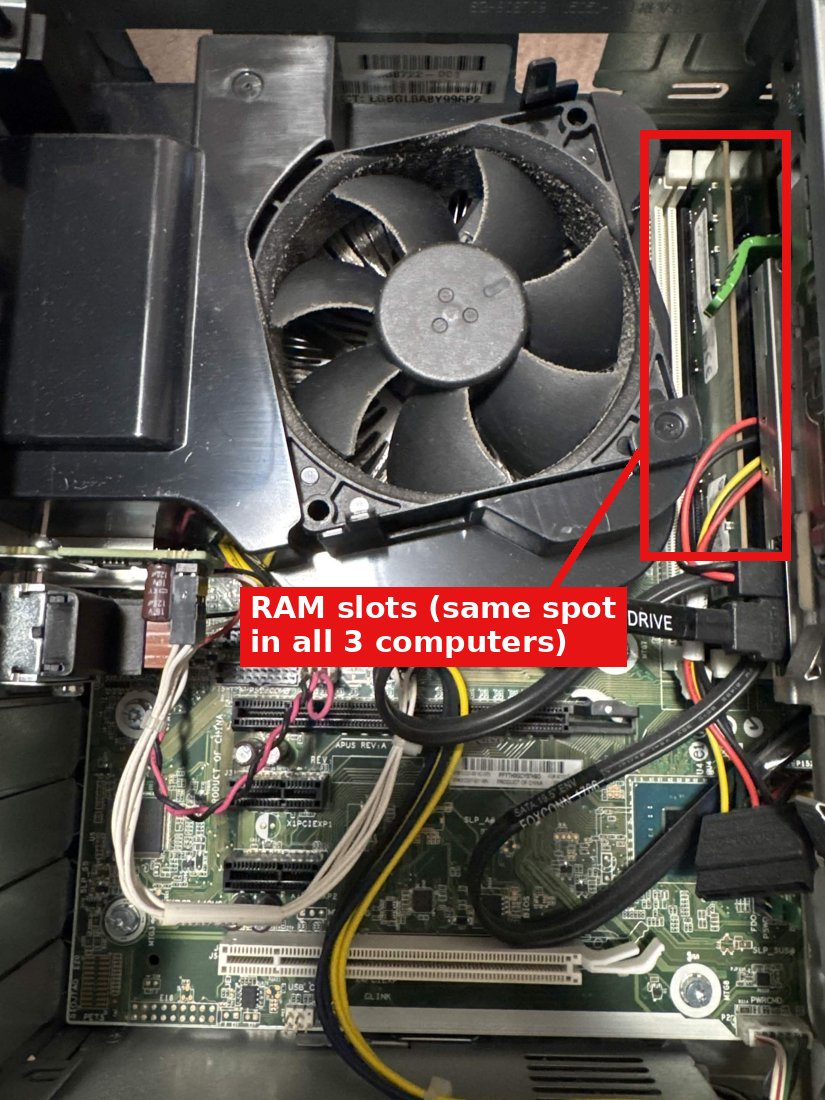
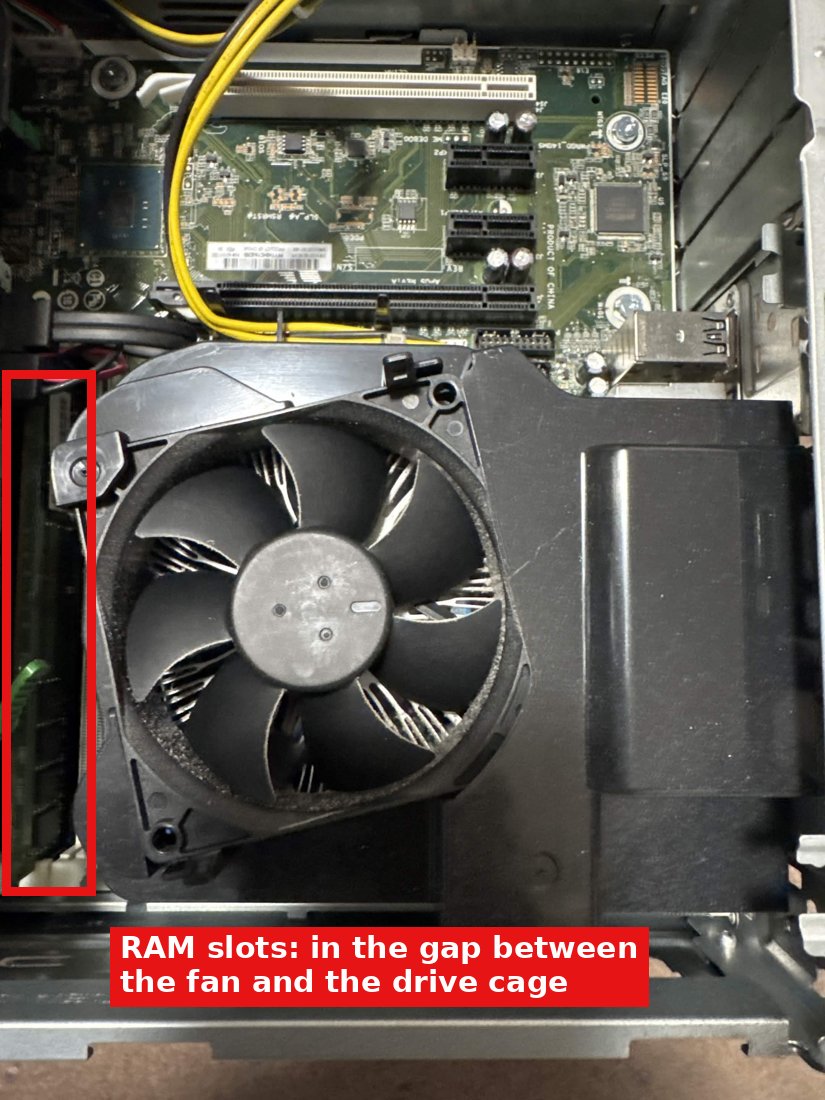
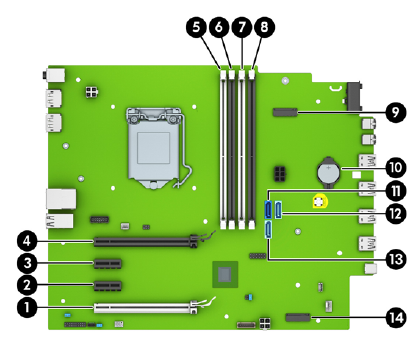
Take the side cover off. The RAM sticks are in the narrow gap between the black fan and the metal drive cage. It's the same spot in all three computers.
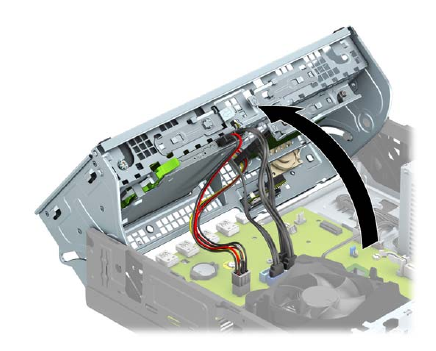
If your fingers don't fit, lift the drive cage up like a car hood (see tab 3). The drives can stay in it.
2Count and photo first
In Sigma and Psi, count how many sticks each one has. Take a photo of the sticker on each stick (it says something like "8GB 2Rx8 PC4-2400"). Send the photos to Sahir.
3Take a stick out
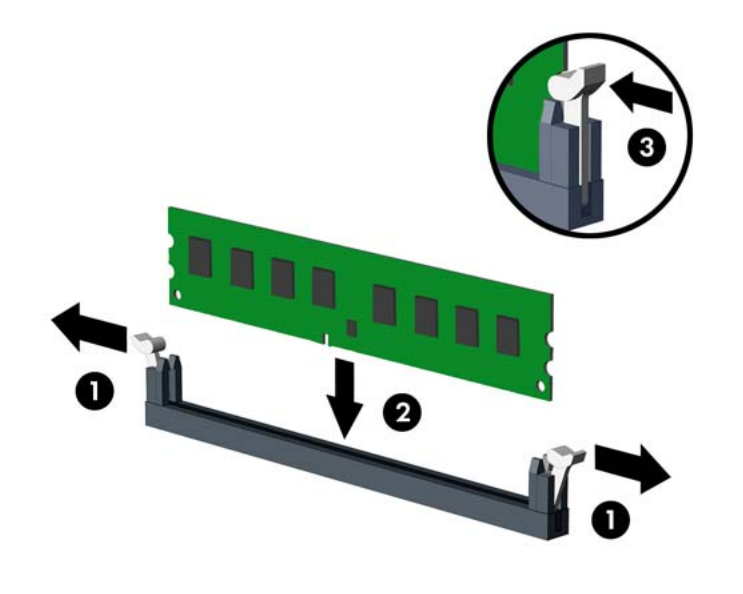
Push the two clips at both ends outward (① below). The stick pops up. Pull it straight up, holding it by the edges.
Diagram from HP's official manual for this computer.
4Put it into Moyo
Open both clips on an empty slot. Line up the notch in the gold edge with the bump in the slot (it only fits one way). Press straight down on both ends, firmly, until both clips snap shut (② ③).
Which slot? Fill the black slots first, then the white ones (HP's rule). 4 slots, so 4 sticks maximum.
5Check it worked
Plug in, turn on, and immediately tap F10. Go to Main → System Information and take a photo of the memory total. Send it to Sahir. Then turn it off and unplug it again for tab 2.
If it beeps or the power light blinks red: unplug it and press each stick down harder.
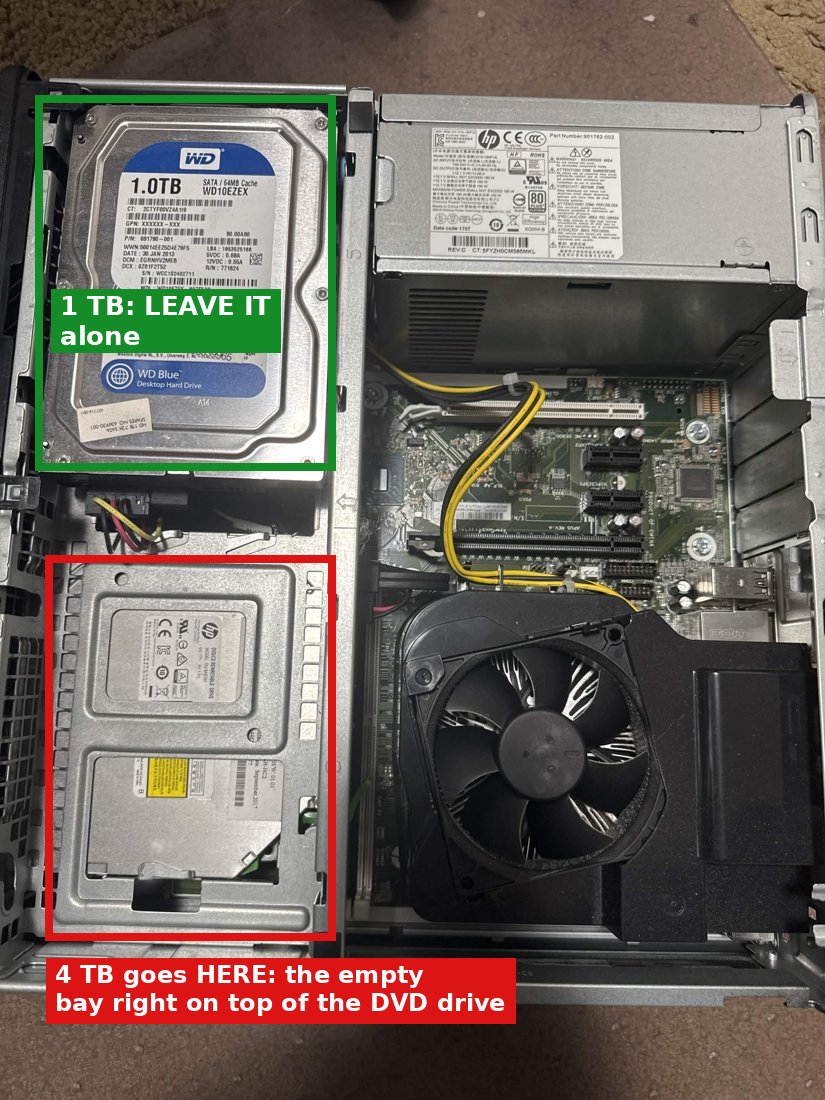
The 1 TB drive stays exactly where it is. Don't unplug it. You're only adding the new 4 TB drive (Seagate IronWolf).
1Get 4 screws from Sigma
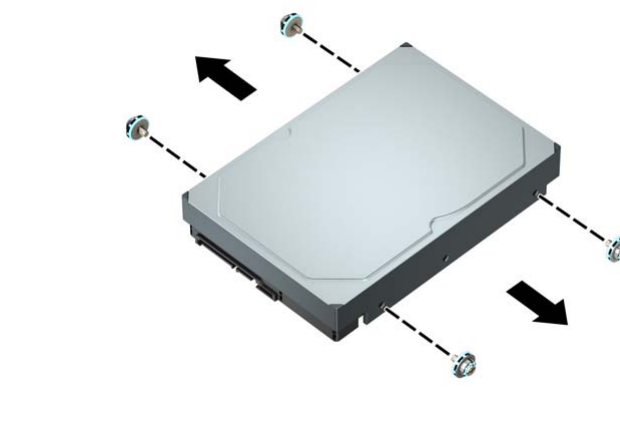
Each hard drive bay needs 4 silver-and-blue screws screwed into the sides of the drive. The new 4 TB doesn't come with them, so take them from Sigma's hard drive:
Open Sigma. Unplug the two cables from the back of its hard drive.
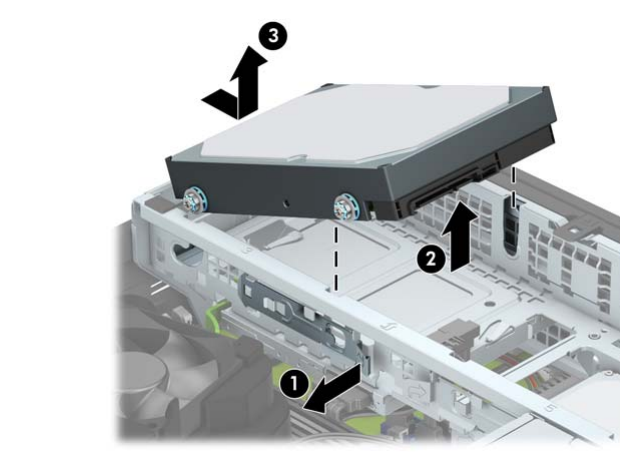
Pull the small release lever at the back of the drive outward, lift the back of the drive up, then slide it back and out (picture below).
Unscrew the 4 silver-and-blue screws (2 on each side) by hand or with a Phillips screwdriver.
Also take one SATA data cable (the thin flat cable, usually black or red) from Sigma's hard drive: unplug both ends.
2Where the 4 TB goes in Moyo
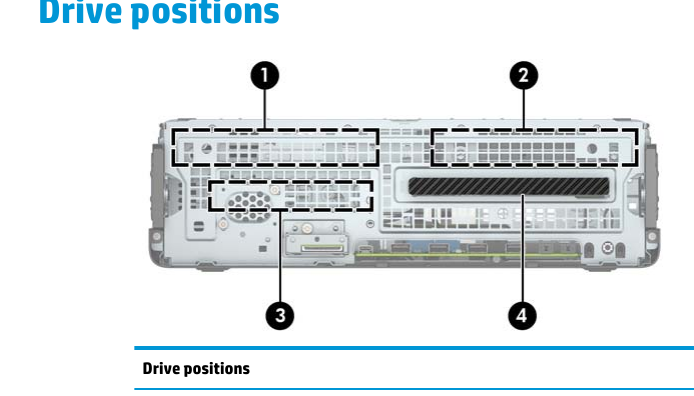
Moyo has two big hard-drive bays. The 1 TB is in one. The empty one is directly on top of the DVD drive.
HP's diagram, seen from the front: ① and ② are the two hard-drive bays, ④ is the DVD drive. ② (on top of the DVD) is the empty one.
3Put the drive in
Screw the 4 silver-and-blue screws into the sides of the new 4 TB (2 per side, same holes as on Sigma's drive).
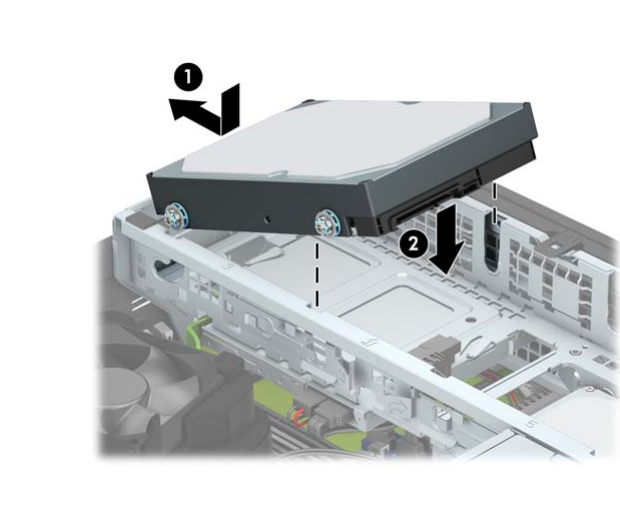
Line up the screws on the front of the drive with the slots in the cage, push the front down and forward, then press the back down until it clicks (picture).
4Plug in two cables
Data cable: one end into the back of the 4 TB. The other end into any empty blue socket on the motherboard (light blue is best). Don't unplug anything that's already plugged in.
Power: find an unused flat black power plug on the bundle of wires from the power supply (it looks the same as the one on the back of the 1 TB). Push it into the wider socket on the 4 TB.
HP's motherboard map: 11 = dark blue, 12/13 = light blue (the three drive sockets; two are already used by the 1 TB and the DVD), 14 = the M.2 slot for tab 3.
No free power plug? Stop and send Sahir a photo of the cables. Don't unplug the 1 TB or the DVD to borrow theirs.
The M.2 SSD is the small Kingston NV3 card (about the size of a stick of gum). It's where Proxmox will live. No cables, just one screw.
1Open up the drive cage
Power unplugged. Side cover off.
Pop off the plastic front panel (it unclips at the top).
Tilt the metal drive cage up like a car hood. The drives stay in it and the cables stay plugged in.
2Find the slot
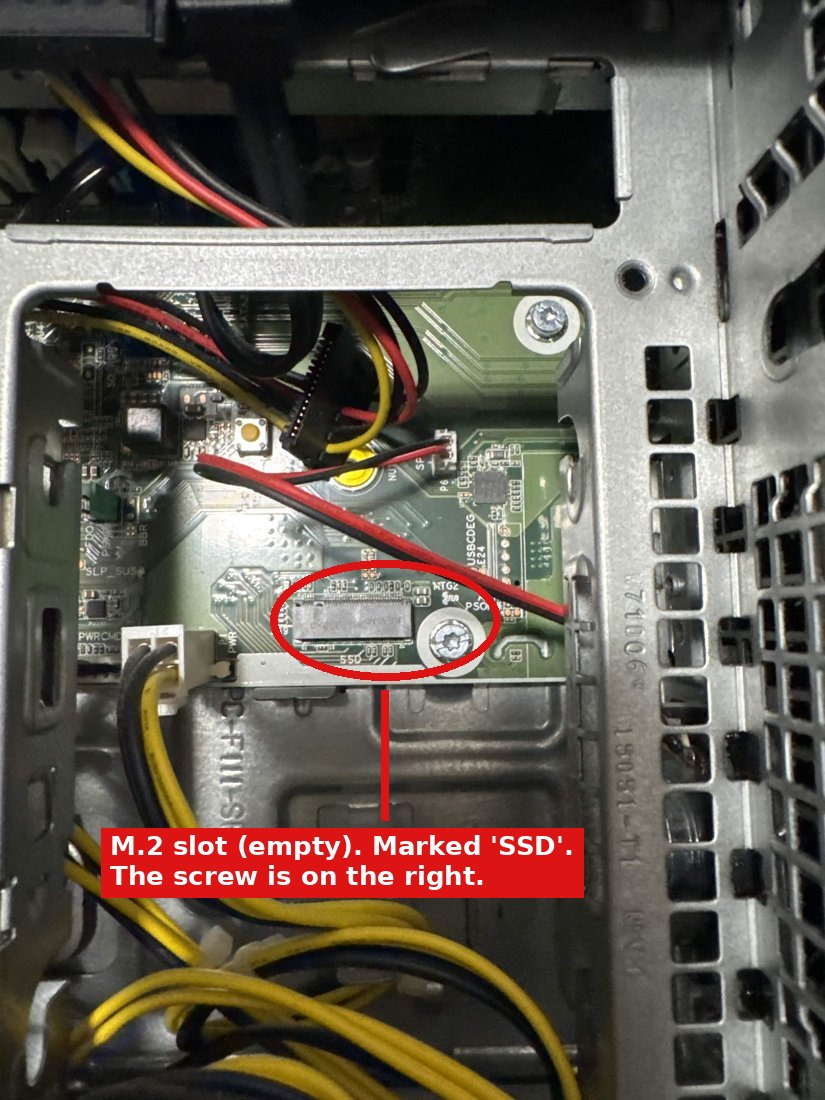
Under the cage, next to a small white "PWR" plug, there's a short black slot marked SSD with a screw (14 on HP's map in tab 2). Here's the same spot in Psi:
If there's already a green card in the slot, stop and send Sahir a photo.
3Put the card in
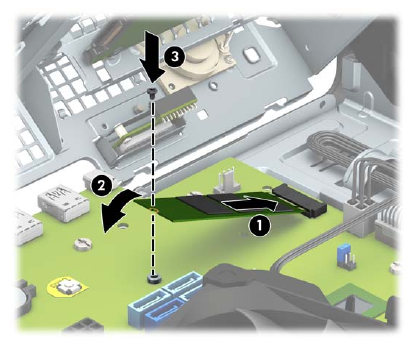
Unscrew the small screw at the end of the slot. Keep it!
Hold the card label-up at a slight angle (about 30°) and slide the gold edge into the slot (①).
Press the other end down flat (②) and put the screw back in to hold it (③). Don't overtighten.
4Close up
Tilt the cage back down, watching that no cables get pinched. Front panel back on, side cover back on.
5Check the drives (2 minutes)
Plug in, turn on, tap F10 → Main → System Information. You should see the memory, the Kingston SSD and the hard drives. Take a photo and send it to Sahir. Then turn it off.
You need: a USB stick (8 GB or bigger), which will be completely erased; your Windows laptop; a monitor, keyboard and mouse for Moyo; and a network cable from Moyo to the home router.
These steps follow Proxmox's official installation guide. The installer pictures are Proxmox's own screenshots, with red notes added. Pictures marked MOCK-UP are drawings of what you'll see.
Download and install balenaEtcher: etcher.balena.io. Proxmox's guide says it "works out of the box".
Plug the USB stick into the laptop. Open Etcher:
Flash from file → choose proxmox-ve_9.1-1.iso
Select target → choose the USB stick (check the size so you don't pick a different drive)
Flash! → wait until it says it's done
If Windows then says "You need to format the disk", click Cancel. That's normal.
Take the USB stick out.
Part B: Start Moyo from the USB stick
Connect the monitor, keyboard, mouse and the network cable to Moyo. Plug in the USB stick.
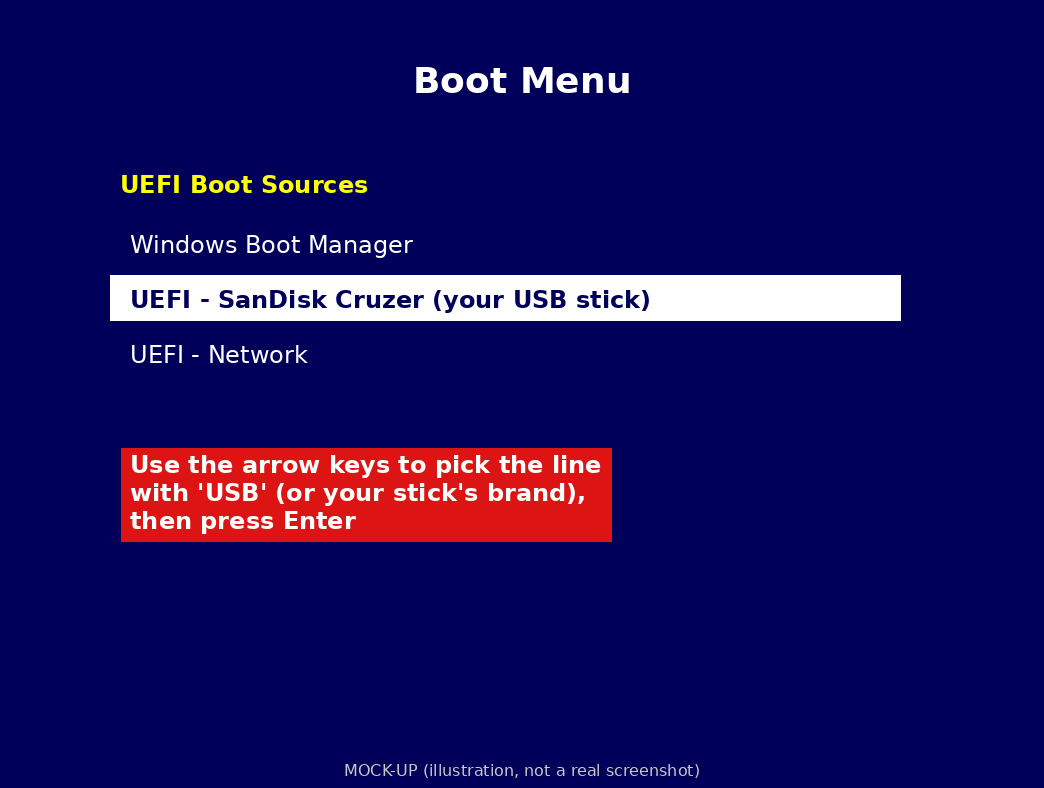
Turn Moyo on and immediately tap F9 over and over until the Boot Menu appears.
Pick the line with USB (or your stick's brand) using the arrow keys, then press Enter.
If the USB isn't in the list, or the screen says something about Secure Boot: send Sahir a photo and stop.
Part C: The installer, screen by screen
1. Welcome screen: "Install Proxmox VE (Graphical)" is already highlighted. Press Enter.
2. License (EULA): click I agree.
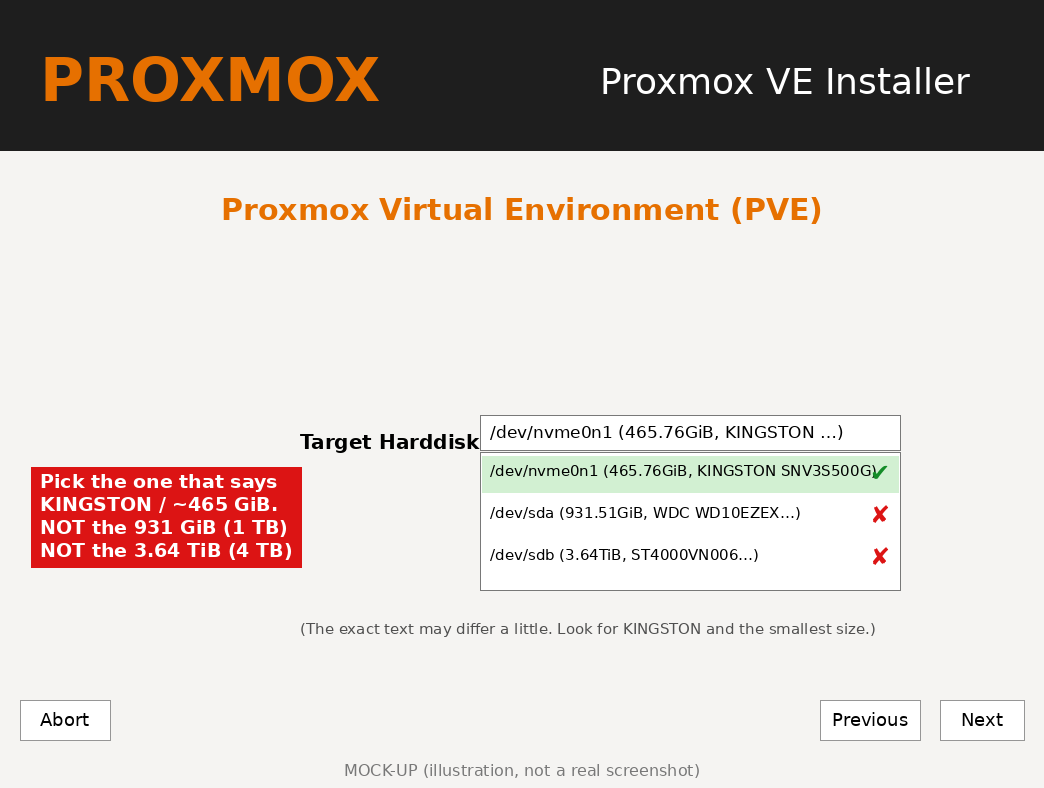
3. Target Harddisk: the most important screen. Click the box and choose the one that says KINGSTON (about 465 GiB). Not the 931 GiB one (that's the 1 TB) and not the 3.64 TiB one (the 4 TB). Don't touch "Options". Click Next.
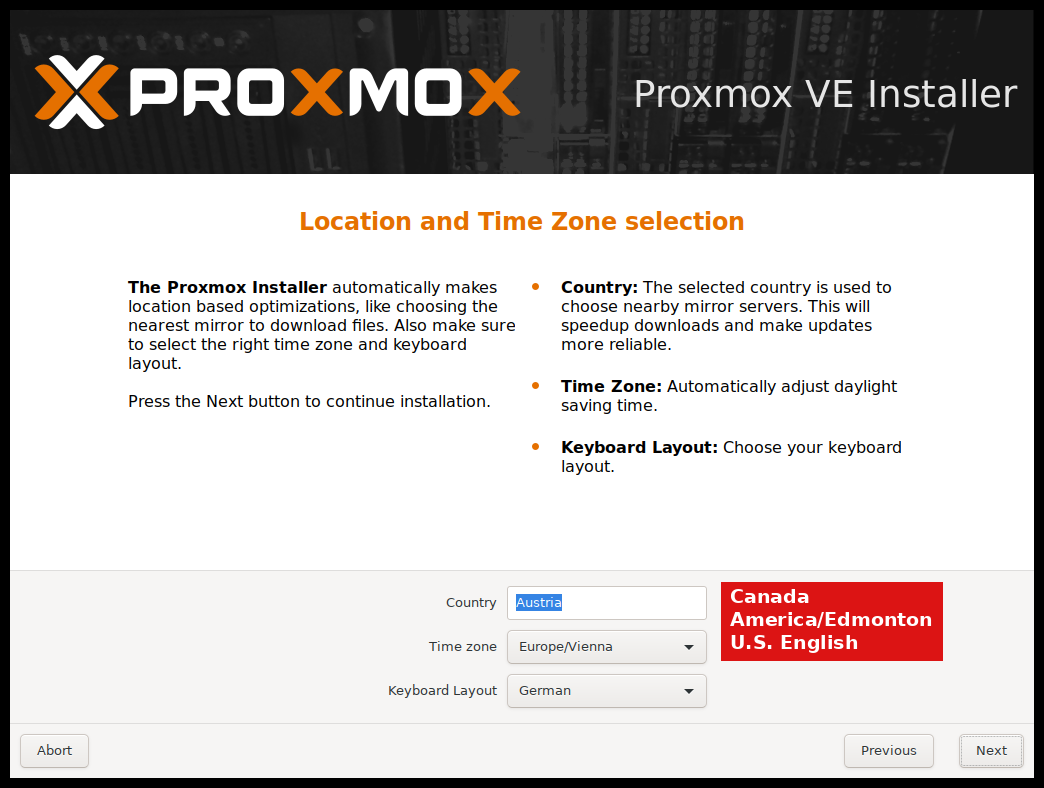
4. Location: Country Canada, Time zone America/Edmonton, Keyboard U.S. English. Click Next.
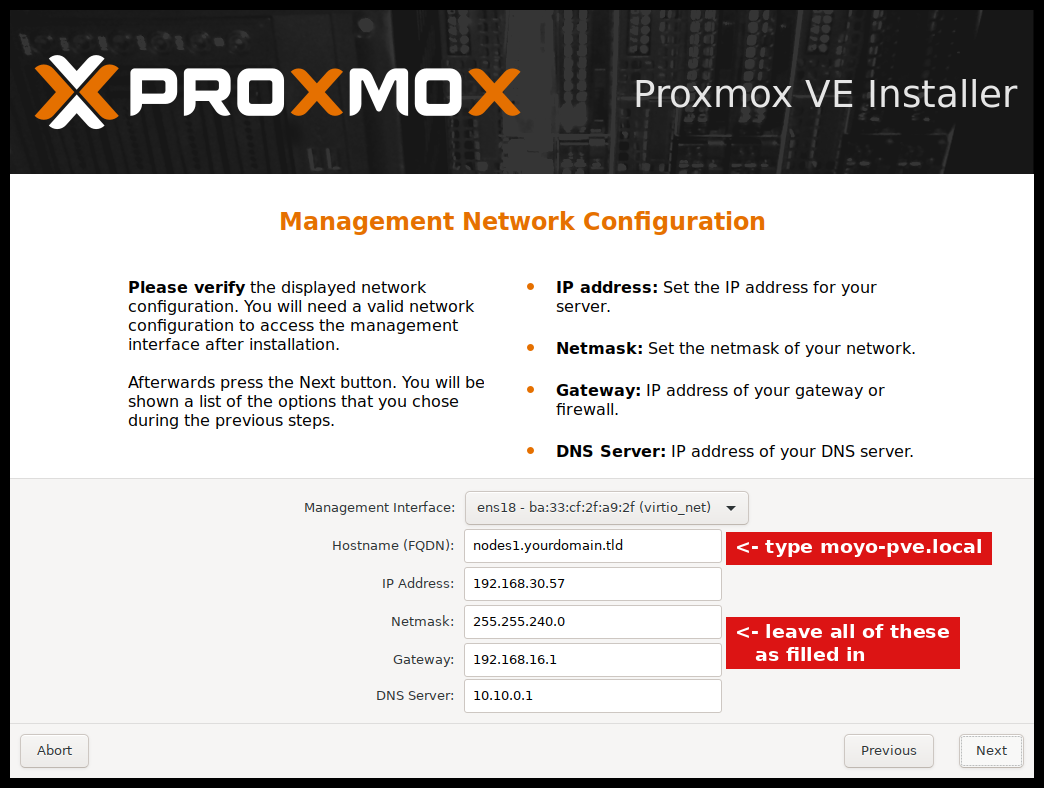
6. Network: In Hostname (FQDN), delete what's there and type moyo-pve.local. Leave every other box as it is (it fills them in from your router). Write down the IP Address it shows. Click Next.
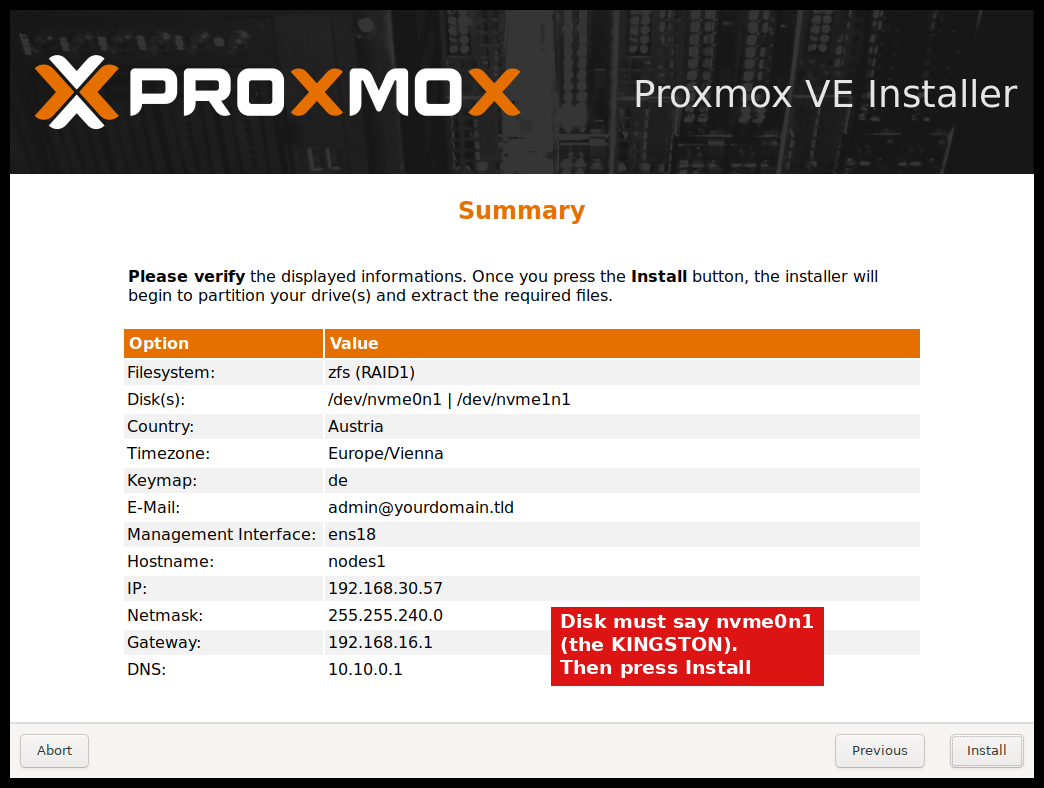
7. Summary: check that the disk says nvme0n1, the Kingston. If not, click Previous back to screen 3. Then click Install.
8. Wait for the progress bar (several minutes). It restarts by itself at the end. Pull out the USB stick as soon as the screen goes black.
Part D: Write down the address
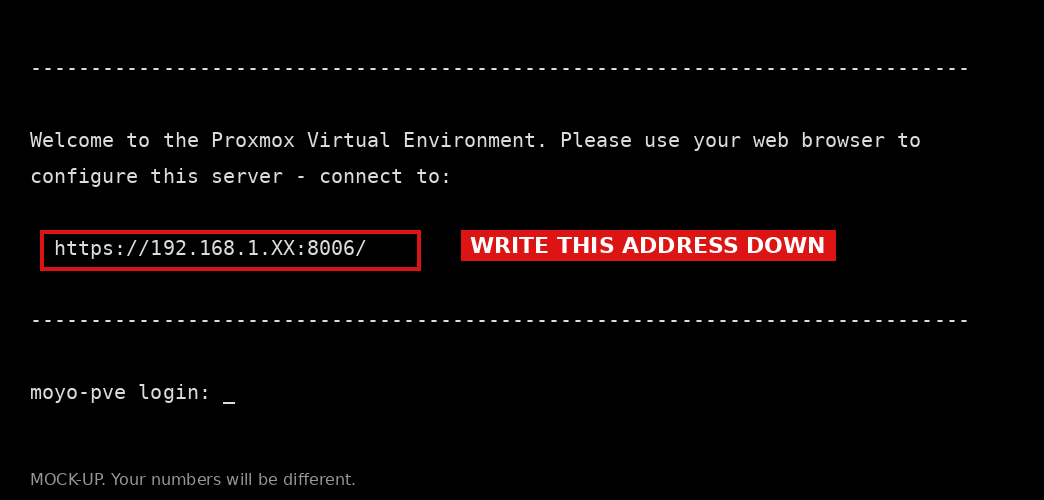
After it restarts you'll get a black screen like this. Write down the https://… address. You don't need to log in here.
If Windows starts instead: restart, tap F9, pick the line that says proxmox, press Enter. Then tell Sahir so he can fix the boot order.
Part E: Log in from the laptop
On the laptop (same home Wi-Fi), open Edge or Chrome and type the address exactly, e.g. https://192.168.1.XX:8006
It warns "Your connection isn't private". That's normal for Proxmox. Click Advanced → Continue to … (unsafe).
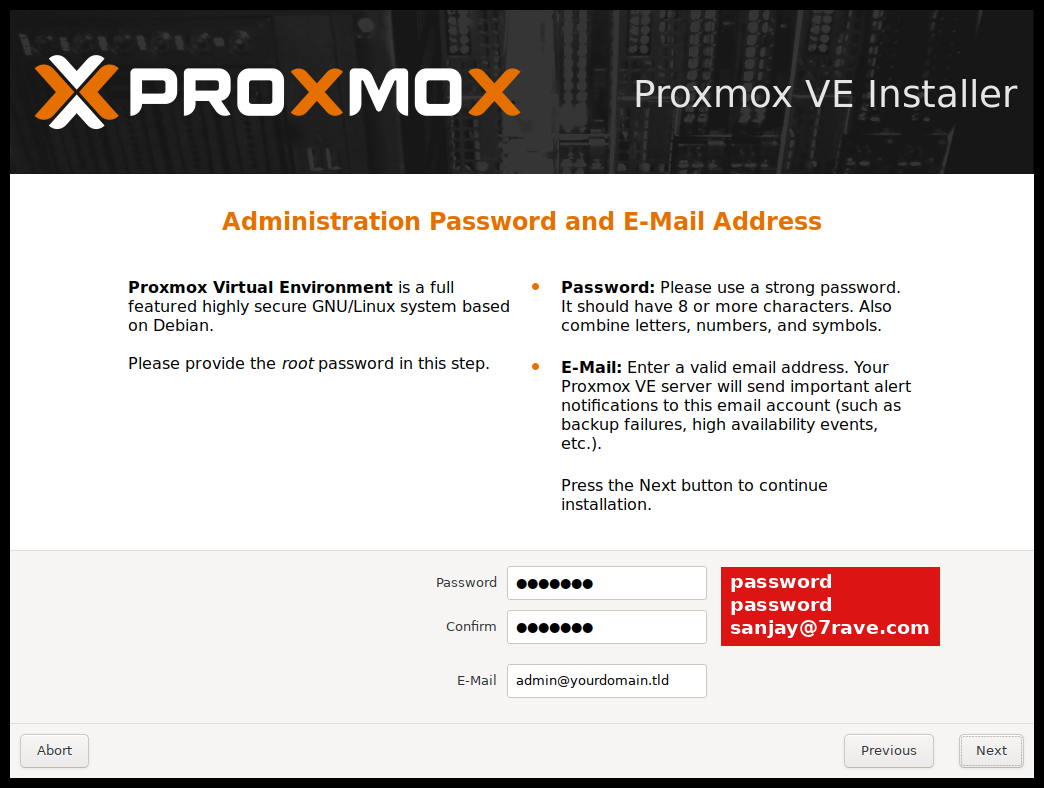
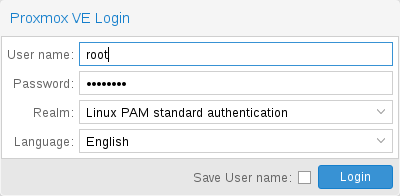
User name root, Password password, Realm Linux PAM → Login.
A box says "No valid subscription". Click OK. That's normal and free to ignore.
Part F: Create Sahir's login
On the left, click moyo-pve. At the top right, click >_ Shell. A black box opens.
Type this and press Enter:adduser sahir
It asks for a password twice: type password each time (nothing shows while you type, that's normal). Then just press Enter 5 times for the name/phone questions, then type Y and Enter.
Type this and press Enter:pveum user add sahir@pam
Type this and press Enter:pveum acl modify / -user sahir@pam -role Administrator
Same commands as Proxmox's official user-management guide. Last time Sahir's login didn't work because this was done in the wrong order.
Part G: Add the 4 TB drive
On the left, click moyo-pve → Disks. You should see the 4 TB (about 4 TB / 3.6 TiB, "ST4000…").
Click Disks → Directory → Create: Directory.
Disk: choose the ST4000 / ~4 TB one (not the 1 TB). Filesystem: ext4. Name: data4tb. "Add Storage" ticked. Click Create and wait for "TASK OK".
If it says "No disks unused", stop and tell Sahir. Don't wipe anything.
Done ✅ Send Sahir:
the https://… address
a photo of the Proxmox page with data4tb showing on the left
Leave Moyo on and plugged into the network.
Sources: HP Hardware Reference Guide for the EliteDesk 800 G3 SFF (pictures and steps for RAM, drives, M.2); Proxmox VE official installation guide and user-management docs (installer screenshots from pve.proxmox.com). Last updated: 2026-10-18 8:55 PM Pacific.